

Revo Uninstaller Pro 5 — Lifetime Licence | Sofryx
Original price was: $200.00.$15.00Current price is: $15.00.
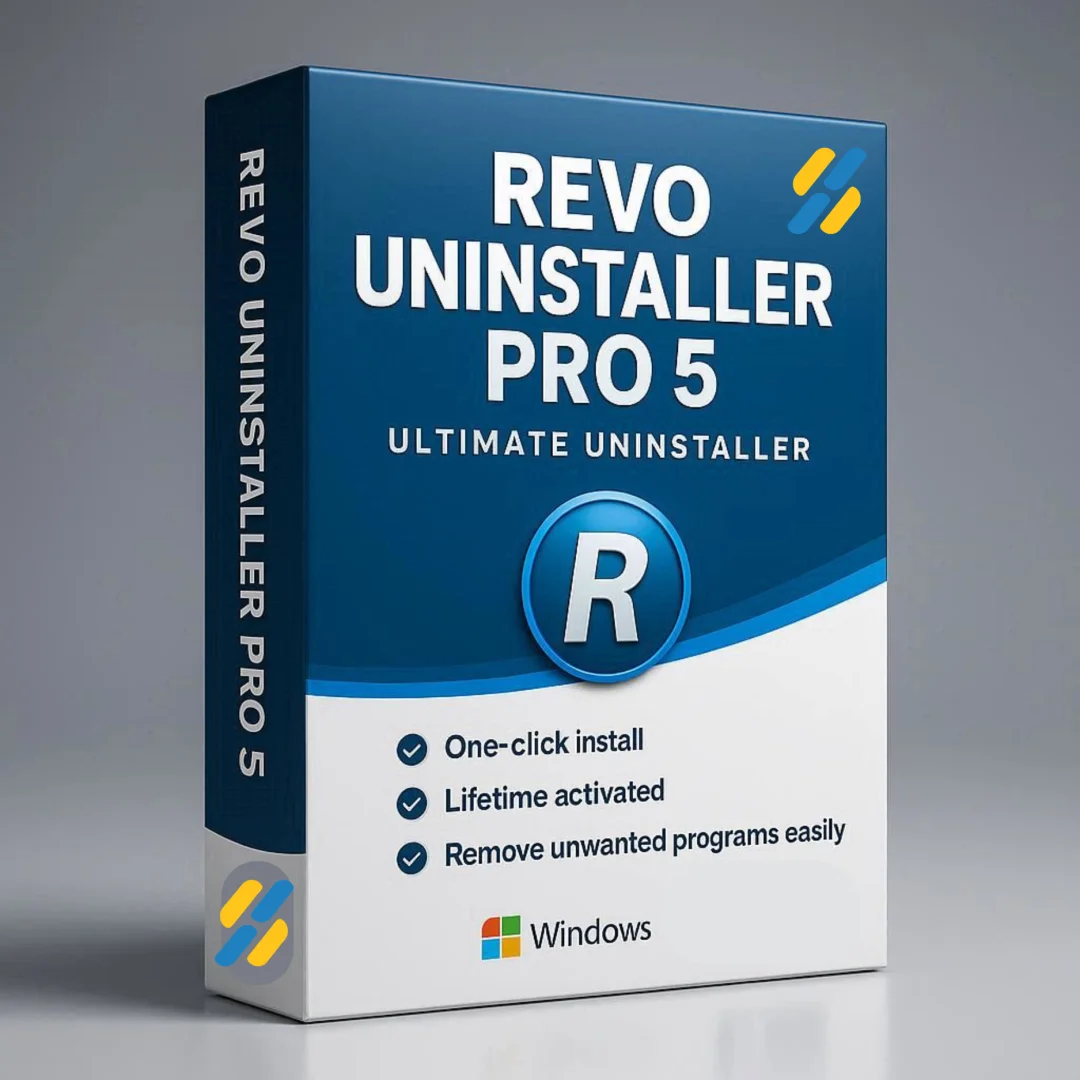
Buy Revo Uninstaller Pro 5 genuine lifetime licence. Complete program removal with forced uninstall and residual file scanning. Personally tested. Instant delivery.
Revo Uninstaller Pro 5 — Complete Program Removal with Forced Uninstall and Advanced Residual Scanning
Revo Uninstaller Pro 5 is the advanced program removal tool that completely eliminates unwanted applications from your Windows computer along with all leftover files, folders, and registry entries that standard uninstallers leave behind. Built on a state-of-the-art scanning algorithm refined over 13 years of continuous development, this powerful utility goes far beyond Windows built-in uninstall feature by detecting and removing every trace of uninstalled software that can slow down your system, waste disk space, and cause conflicts with other programs. Whether you are an IT professional maintaining clean workstations, a gamer removing old games completely, or a home user keeping their computer running smoothly, Revo Uninstaller Pro 5 is the definitive solution for complete program removal. Every licence on Sofryx is personally tested by Mani.
Key Features of Revo Uninstaller Pro 5
- Complete Program Removal: Uninstall programs thoroughly by first running the built-in uninstaller, then scanning for and removing all residual files, folders, and Windows Registry entries.
- Forced Uninstall: Remove stubborn, partially installed, corrupted, or broken programs that cannot be uninstalled through normal methods or whose built-in uninstallers are missing.
- Hunter Mode: Point at any program window, taskbar icon, or desktop shortcut to instantly identify and manage the application including uninstall, stop, disable startup, and view details.
- Real-Time Installation Monitoring: Track every change made during program installation for guaranteed complete removal of every file, folder, and registry entry when uninstalling later.
- Quick and Multi-Uninstall: Remove one or multiple programs rapidly in sequence without waiting for each individual uninstall process to complete before starting the next.
- Windows Apps Removal: Uninstall built-in Windows apps and browser extensions from popular browsers that cannot be removed through standard Windows settings.
- Eight Cleaning Utilities: Built-in system cleaning tools for junk files, temporary files, browser history, Office history, Windows history, and other system maintenance tasks.
- Log Management: Create, edit, view, share, export, and import installation logs for tracking program installations and ensuring complete removal across multiple computers.
Why Buy From Sofryx
- Personally tested by Mani before every listing goes live
- Genuine manufacturer-issued licence — not cracked, not trial
- One-time payment — lifetime activation, zero renewal fees
- Instant access via your website dashboard after payment
- Telegram support available for all installation queries
System Requirements
- Operating System: Windows 7, Windows 8, Windows 8.1, Windows 10, or Windows 11 (32-bit and 64-bit supported)
- Processor: Any modern processor
- RAM: 512MB minimum
- Storage: 100MB free disk space for installation
What You Get After Purchase
- Licence key or activation file
- Official download link via your account dashboard
- Step-by-step installation guide (video or written)
- Telegram support contact for installation help
Who Is This For
Revo Uninstaller Pro 5 serves every Windows user who wants to maintain a clean, fast, and stable computer by ensuring that uninstalled programs leave absolutely no traces behind. IT professionals and system administrators use Revo Uninstaller to maintain clean, standardized workstation configurations across corporate environments where software installations and removals happen frequently. Help desk technicians resolve software conflicts and system slowdowns by completely removing problematic applications that were not fully uninstalled by standard methods. Gamers regularly install and remove large game installations and need to ensure that all game files, configuration data, and registry entries are completely eliminated to free disk space and prevent conflicts. Power users and tech enthusiasts who frequently test new software rely on Revo Uninstaller to keep their systems clean despite high software turnover. Home users who notice their computers slowing down over time use the cleaning utilities and complete uninstall capabilities to restore system performance. Office workers managing software on their work computers ensure compliance with IT policies by completely removing unauthorized or expired software.
Complete Program Removal — Advanced Residual File Scanning
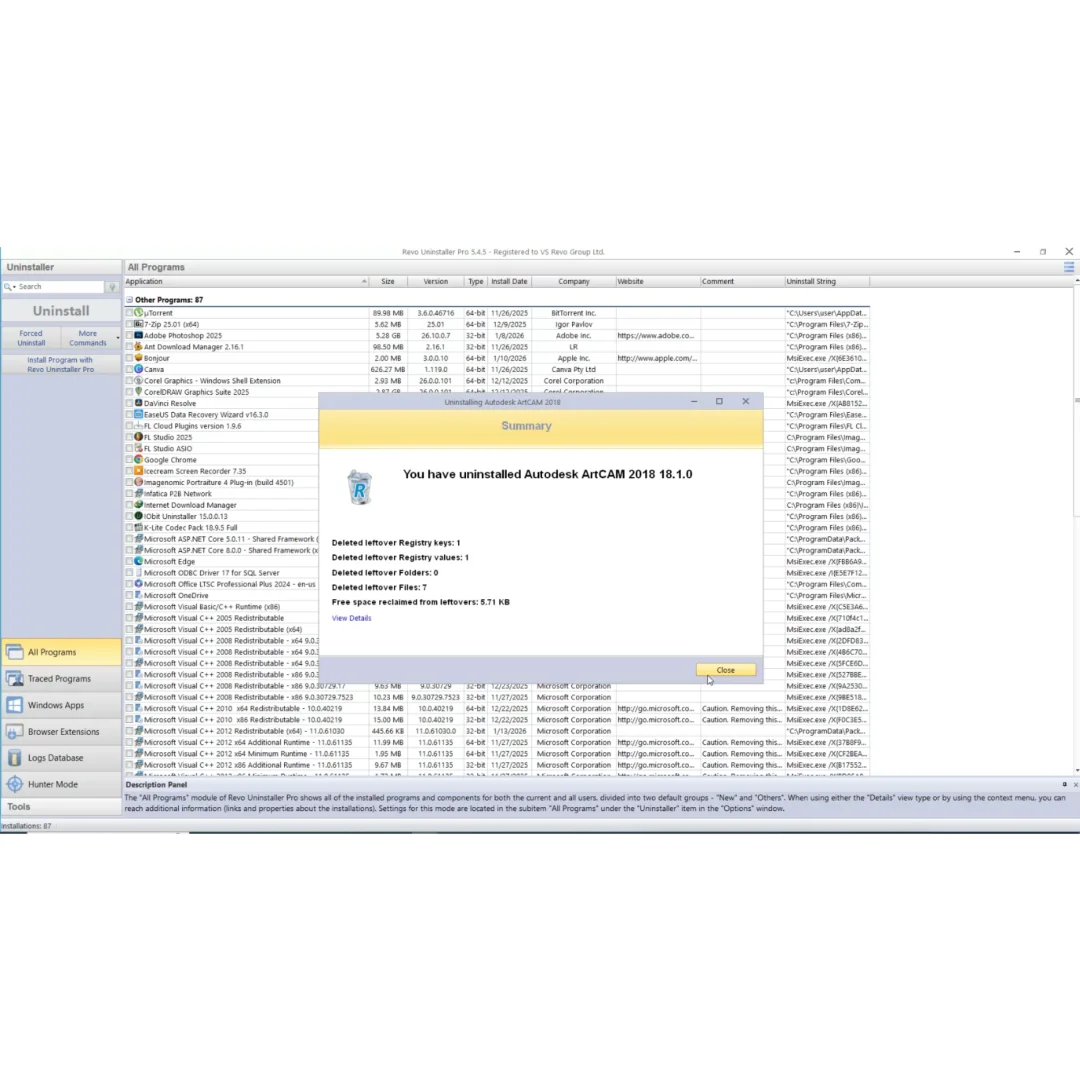
Revo Uninstaller Pro 5 uses a sophisticated multi-stage removal process that ensures every trace of an uninstalled program is eliminated from your computer. The first stage runs the program built-in uninstaller to remove the application through its intended removal process. After the built-in uninstaller completes, Revo Uninstaller performs an advanced scan of your entire system to detect residual files, folders, and Windows Registry entries that the standard uninstaller failed to remove. The scanning algorithm has been continuously refined over 13 years of development, making it the most thorough and accurate residual detection engine available in any uninstaller application. The scan results are presented in a clear interface that shows exactly what leftover items were found, where they are located, and their size, allowing you to review the findings before confirming the removal. Version 5 introduces the ability to scan for remnants across multiple user accounts on the same computer, including both administrator and standard user profiles, ensuring that program traces stored in user-specific locations are detected and removed regardless of which account installed the software.
Forced Uninstall — Remove Stubborn and Corrupted Programs
The Forced Uninstall module in Revo Uninstaller Pro 5 addresses situations where programs cannot be removed through normal uninstall methods. This includes programs whose built-in uninstallers are missing, damaged, or not functioning correctly, programs that were only partially installed before the installation process was interrupted, programs that were partially uninstalled but left significant residual data behind, and corrupted programs that crash when attempting to run their uninstaller. Forced Uninstall works by allowing you to point Revo Uninstaller at the program installation folder or any remaining files associated with the program, then performing a comprehensive scan to find and remove all related files, folders, and registry entries regardless of whether a working uninstaller exists. Professional reviews on G2 consistently highlight Forced Uninstall as the most valuable feature for IT professionals who regularly encounter programs that resist normal removal methods. You can also use Forced Uninstall to manually scan for remnants of programs that were removed without Revo Uninstaller, cleaning up leftover data from previous uninstall attempts.
Hunter Mode — Visual Program Identification and Management
Hunter Mode is a unique feature exclusive to Revo Uninstaller that provides an innovative visual approach to program management. When activated, Hunter Mode displays a crosshair target that you drag over any visible element of a running program including its window, taskbar icon, system tray icon, or desktop shortcut. Revo Uninstaller instantly identifies the program associated with that visual element and presents a menu of management options including uninstall, force kill the process, remove from auto-startup, and view detailed program information. This visual identification approach is invaluable when you encounter an unfamiliar program running on your system and need to quickly determine what it is and remove it. Hunter Mode also helps identify bloatware, adware, and unwanted programs that may not appear in the standard Windows programs list but are visible through their windows, icons, or tray notifications. For comprehensive usage guides, the Revo Uninstaller support center provides detailed documentation on Hunter Mode and all other features.
Real-Time Installation Monitoring — Guaranteed Complete Removal
The real-time installation monitoring feature in Revo Uninstaller Pro 5 provides the most reliable method for achieving guaranteed complete program removal. When you install new software through Revo Uninstaller installation monitoring system, the tool tracks every file created, every folder added, every registry key written, and every system change made during the installation process. This comprehensive installation log is stored and associated with the installed program, creating a complete record of everything the installer placed on your system. When you later decide to uninstall that program, Revo Uninstaller uses this detailed installation log to identify and remove every single item that was added during installation, achieving a level of removal completeness that is impossible with after-the-fact scanning methods alone. The Revo Uninstaller team also monitors program installations independently and provides pre-built logs that can be downloaded for popular applications, giving you the benefits of monitored installation even for programs you installed before activating Revo Uninstaller.
Quick Uninstall and Multi-Uninstall — Batch Program Removal
Revo Uninstaller Pro 5 includes Quick Uninstall and Multi-Uninstall modes that dramatically accelerate the process of removing multiple programs from your computer. Quick Uninstall streamlines the removal workflow by automatically proceeding through each stage of the uninstall process with minimal user interaction, reducing the clicks and confirmations required to complete a single program removal. Multi-Uninstall allows you to select multiple programs for sequential removal, queuing them up and processing each one in turn without requiring you to return and start the next uninstall manually after each program completes. This batch removal capability is essential for IT professionals setting up or refreshing computers where numerous pre-installed bloatware applications need to be removed, for users migrating to a new software configuration who need to clear out old programs efficiently, and for anyone performing a major system cleanup where dozens of unused applications have accumulated over time.
Windows Apps and Browser Extensions Removal
Revo Uninstaller Pro 5 extends beyond traditional desktop program removal to handle Windows built-in apps and browser extensions that cannot be removed through standard Windows settings or browser interfaces. Many Windows 10 and Windows 11 installations include pre-installed Microsoft Store apps that users do not want or need but that cannot be uninstalled through the normal Settings interface. Revo Uninstaller provides the ability to remove these built-in apps cleanly, freeing system resources and reducing Start menu clutter. The browser extension removal feature scans popular web browsers including Chrome, Firefox, and Edge to identify and remove installed extensions, which is particularly valuable for removing unwanted or potentially malicious extensions that may have been installed without the user knowledge. This capability addresses a growing security concern as browser extensions can collect personal data, inject advertising, and modify web browsing behavior without obvious user awareness.
Eight Built-In System Cleaning Utilities
Beyond program removal, Revo Uninstaller Pro 5 includes eight additional system cleaning utilities that help maintain overall computer health and performance. The junk file cleaner removes temporary files, cached data, and unnecessary system files that accumulate over time and consume valuable disk space. The browser history cleaner removes browsing history, cookies, cached web pages, and download history from all installed browsers for privacy protection. The Windows history cleaner removes traces of recent activity from Windows features including recent documents, search history, and Start menu usage data. The Office history cleaner removes recent file lists and usage data from Microsoft Office applications. Additional utilities include tools for permanently deleting files beyond recovery, managing Windows startup programs to improve boot time, and removing evidence of recent system activity. These cleaning tools complement the core uninstall functionality by ensuring that your system stays clean not just from uninstalled programs but from all types of accumulated data that degrade performance and compromise privacy. Industry organizations like the International Organization for Standardization define data security practices that thorough system cleaning tools help implement.
Log Management and Uninstall History
Revo Uninstaller Pro 5 provides comprehensive log management capabilities that enable tracking, sharing, and analysis of program installation and removal activities. Installation logs created by the real-time monitoring feature can be edited, viewed in detail, exported to files, and imported on other computers, enabling IT teams to share installation tracking data across managed systems. The export and import functionality is valuable for organizations that need to standardize uninstall procedures across multiple workstations, as a log created on one computer can be transferred and used for removal on another machine with the same program installed. The uninstall history module maintains a complete record of all uninstall operations performed through Revo Uninstaller, providing an audit trail of software removal activities that is useful for compliance documentation, troubleshooting, and system management reporting. Leading technology publications like How-To Geek regularly recommend Revo Uninstaller as the definitive program removal solution. Pair Revo Uninstaller Pro with other tools from Sofryx like PowerISO for disc image management, Nero Burning ROM for disc burning, K-Lite Codec Pack for media playback, Adobe Photoshop 7.0 for image editing, and FabFilter Total Bundle for audio production. Leading tech review site TechRadar features Revo Uninstaller in its coverage of essential Windows utilities.
Frequently Asked Questions
Q: How do I activate Revo Uninstaller Pro 5 after purchase
To activate your Revo Uninstaller Pro 5 on Windows after completing your purchase, follow the provided instructions carefully. Your order includes a detailed step-by-step installation guide that walks you through the entire setup process from downloading the installer to entering your licence key and completing the activation. A video tutorial or written instruction document will be included alongside the setup files to ensure smooth installation. If you encounter any difficulties during the activation process, reach out via Telegram for immediate assistance from our support team who will guide you through every step.
Q: Is this a genuine lifetime licence or a subscription
This is a genuine lifetime-activated licence that you own permanently after a single one-time payment. There are no monthly fees, no annual renewal charges, and no subscription commitments of any kind. Once activated, your Revo Uninstaller Pro 5 remains fully functional on your Windows system indefinitely without requiring any additional payments. Every licence sold on Sofryx is personally verified by Mani to ensure authenticity and reliable long-term functionality. You receive the complete Pro edition with all features including Forced Uninstall, Hunter Mode, installation monitoring, and all eight cleaning utilities activated for lifetime use.
Q: Can I use this on multiple computers
Yes, multiple device use is supported with your Revo Uninstaller Pro 5 licence. You can install and activate the software on more than one Windows computer, allowing you to maintain clean systems across your desktop, laptop, and any other Windows machines you own. This flexibility ensures that your professional program removal toolkit is available on every computer you manage, whether personal devices, family computers, or work machines. The activation process works identically on each Windows machine.
Q: Will I receive future software updates
There is no immediate need to update your Revo Uninstaller Pro 5 after installation as the current version includes full Windows 11 compatibility, the latest scanning algorithms, and all current features. If a critical update becomes necessary in the future for compatibility with a new Windows version or to address a specific program removal challenge, contact Mani directly through Telegram support. The update will be provided free of charge within one year of your original purchase date. This ensures you always have access to a functioning version without additional cost.
Q: How long does delivery take after payment
Delivery is instant and fully automated. Immediately after completing your payment through the Sofryx checkout, your download links become available in your personal account dashboard. Simply log in to your Sofryx account, navigate to the My Account section, and click on Downloads to access all your purchased files. The complete Revo Uninstaller Pro 5 installation package including the setup file, licence key, and installation instructions will be ready for immediate download. There is no waiting period and no manual processing required. You can begin installing within minutes.
Q: Which operating system versions are compatible
Revo Uninstaller Pro 5 is fully compatible with Windows 7, Windows 8, Windows 8.1, Windows 10, and Windows 11 in both 32-bit and 64-bit editions. The system requirements are minimal, requiring only 512MB of RAM, any modern processor, and 100MB of free disk space for installation. This means Revo Uninstaller runs on virtually every Windows computer in use today. The application is specifically designed to handle the removal of both traditional desktop programs and modern Windows Store apps across all supported Windows versions.
Q: What is your refund policy
For complete details regarding our refund terms and conditions, please review the full Refund Policy page available on our website at bydigital.in/refund_returns/. The refund policy outlines all applicable terms including eligibility criteria, timeframes, and the process for requesting a refund on digital product purchases. We encourage every customer to read the policy thoroughly before completing their purchase so they have a clear understanding of their rights and our obligations. Our commitment is to ensure complete customer satisfaction with every product sold on the Sofryx platform.
Q: How do I get support if I have an installation problem
If you encounter any installation difficulties with your Revo Uninstaller Pro 5 on Windows, comprehensive support is available through multiple channels. Windows users can receive direct remote support via AnyDesk, UltraViewer, or Zoom Meeting where a support representative will connect to your computer and resolve the installation issue in real time. This is particularly helpful for configuring the licence activation and verifying that all features including Hunter Mode and installation monitoring are functioning correctly. If the standard installation encounters any issues, an alternative setup file along with revised instructions will be provided promptly. For all support requests, contact us directly through Telegram at t.me/sofryxhelp for fast and reliable assistance.
Only logged in customers who have purchased this product may leave a review.
Reviews
There are no reviews yet.